Create and Export a Video Playlist
Find plays that match specific criteria, save them to a video playlist, and export the playlist for coaching review or offline viewing.
Step 1: Navigate to a player's stats page
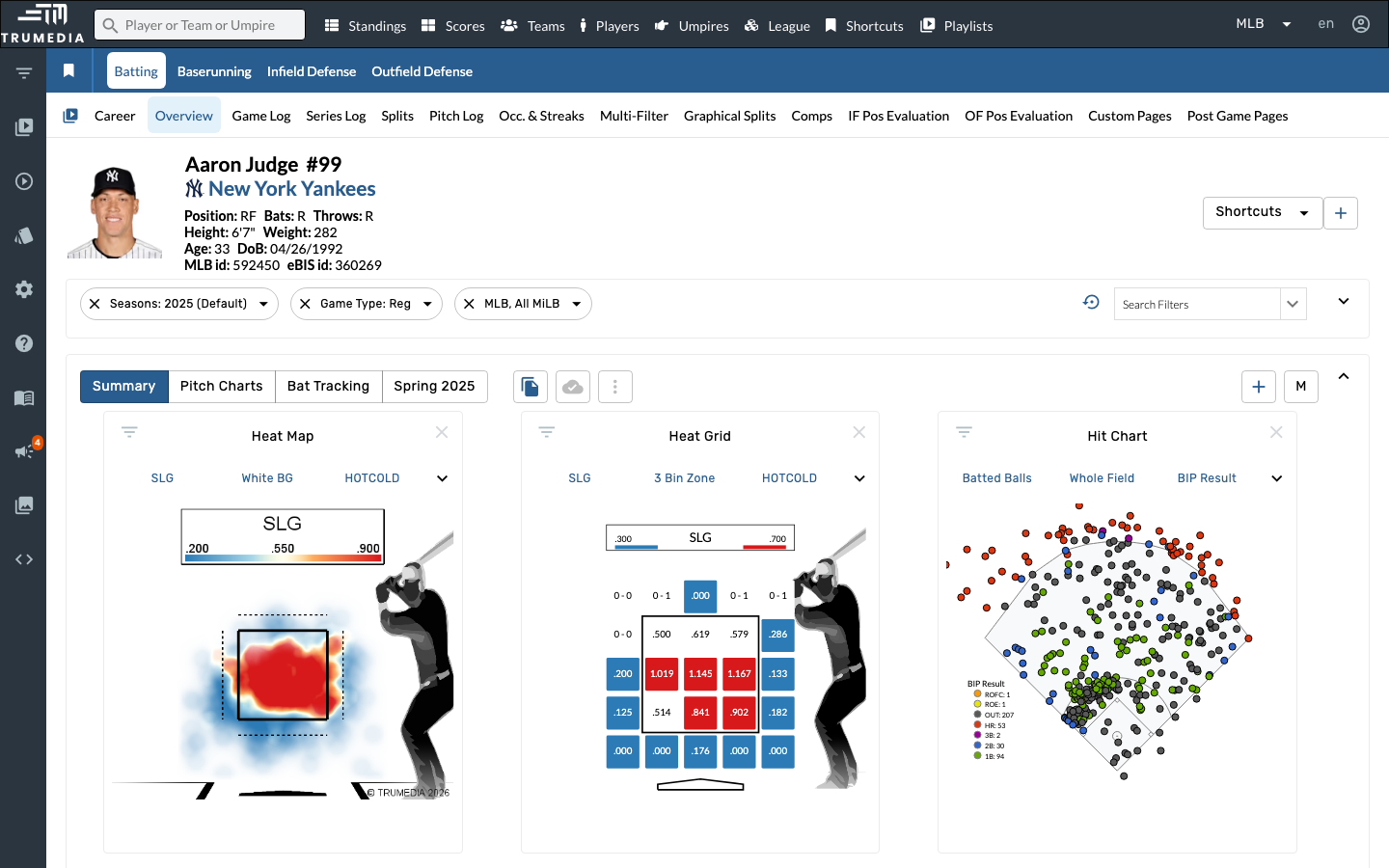
Go to any player's stats page. In this example, we'll look at Aaron Judge's batting page. From here, you can access video of individual plays through the event explorer.
Step 2: Open the video panel
Click the video icon (video_library) in the sub-navigation to open the video/event explorer panel. This shows individual plays that match your current filters, with video links for each event.
Step 3: View your playlists
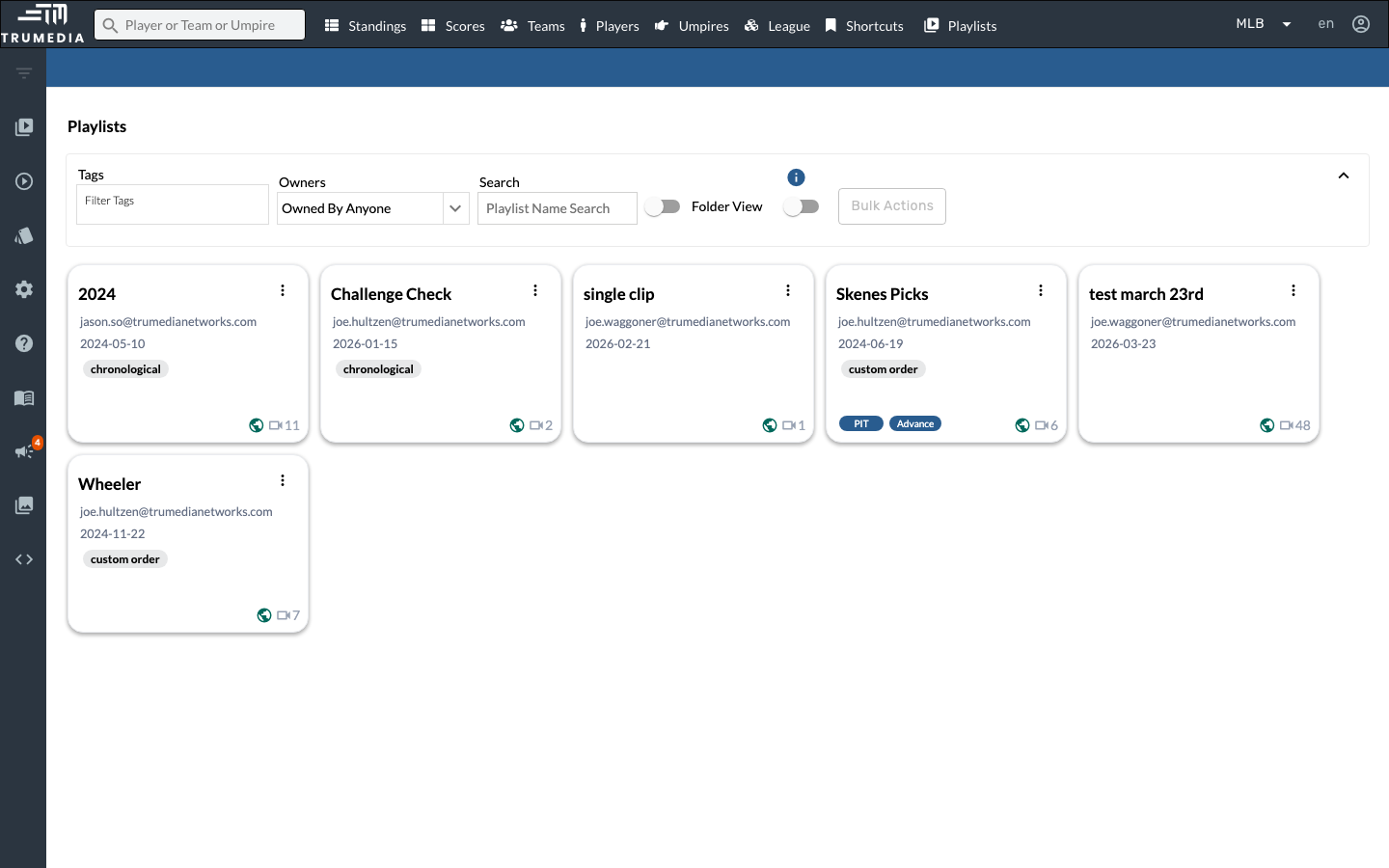
Navigate to the Playlists page from the top navigation bar. Here you can see all saved playlists as cards, showing the playlist name, creator, date, number of clips, and tags. Use the Search, Tags, or Owners filters to find specific playlists.
Key Takeaway
Video playlists let you curate specific plays for coaching meetings, scouting reports, or player development sessions. You can add plays from any stats page, organize them in custom order, and export as MP4 or M3U for easy sharing.