Compare Players on the Leaderboard
Use TruMedia's filters to compare how players perform in specific situations. In this example, we'll filter the batting leaderboard to see which hitters perform best against left-handed pitching.
Step 1: Navigate to the Players Batting leaderboard
Go to Players in the top navigation bar, then select Batting. You'll see the league-wide batting leaderboard for the current season with default filters applied.
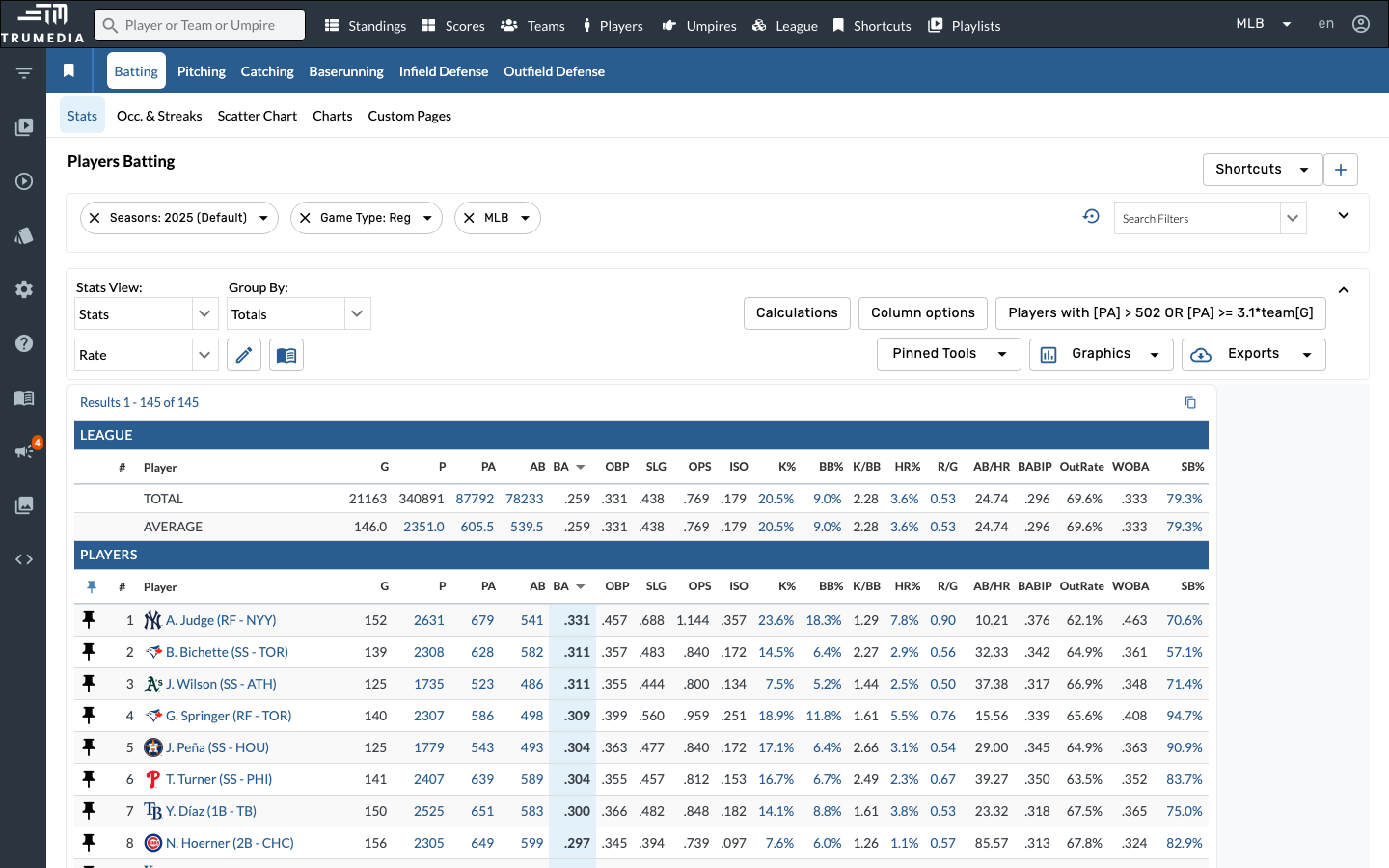
Step 2: Open the Search Filters panel
Click Search Filters on the right side of the filter bar. This opens a searchable panel where you can add any available filter to narrow down the data.
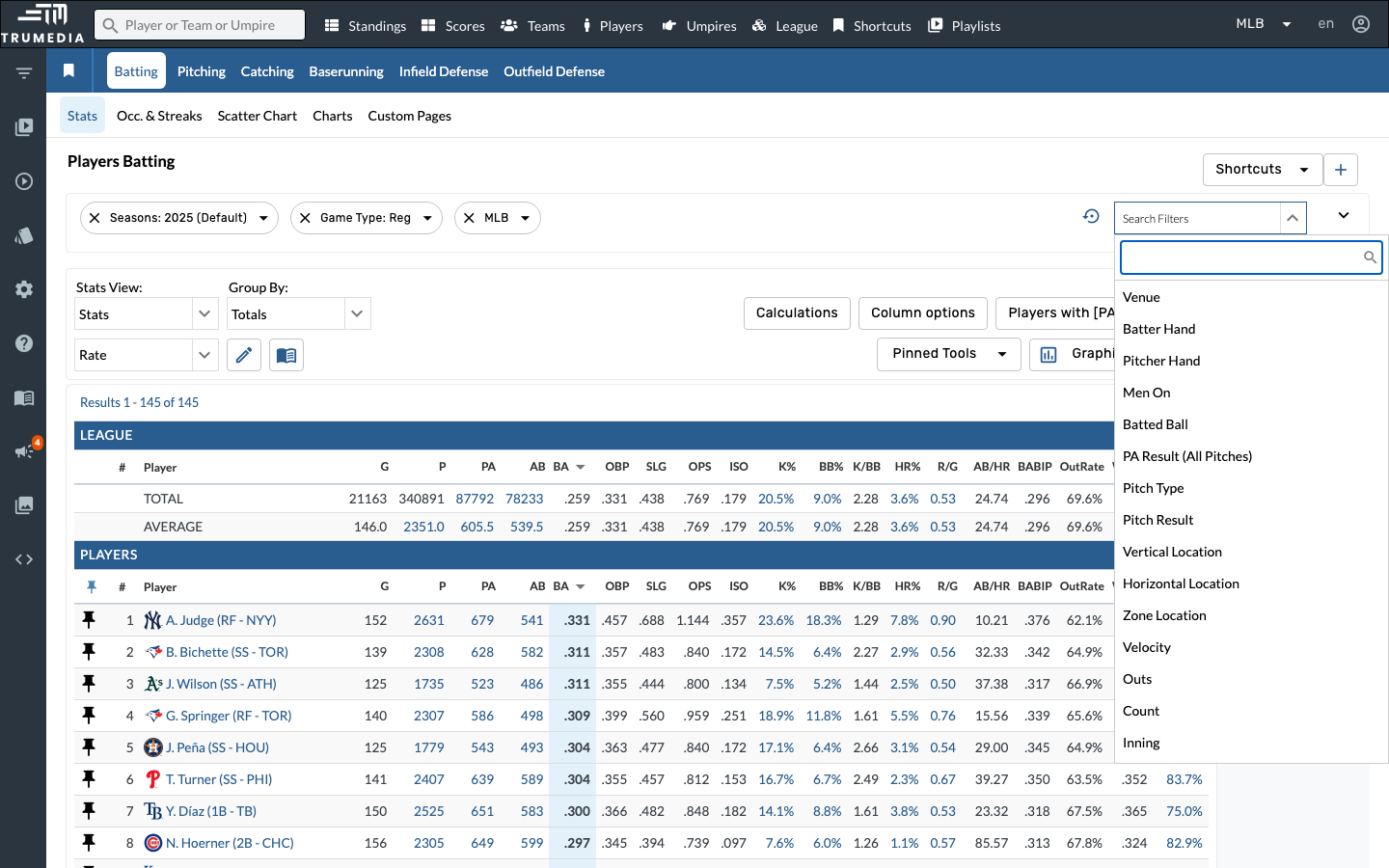
Step 3: Select the Pitcher Hand filter
In the Search Filters panel, click Pitcher Hand. This adds a Pitcher Hand filter chip to the filter bar.
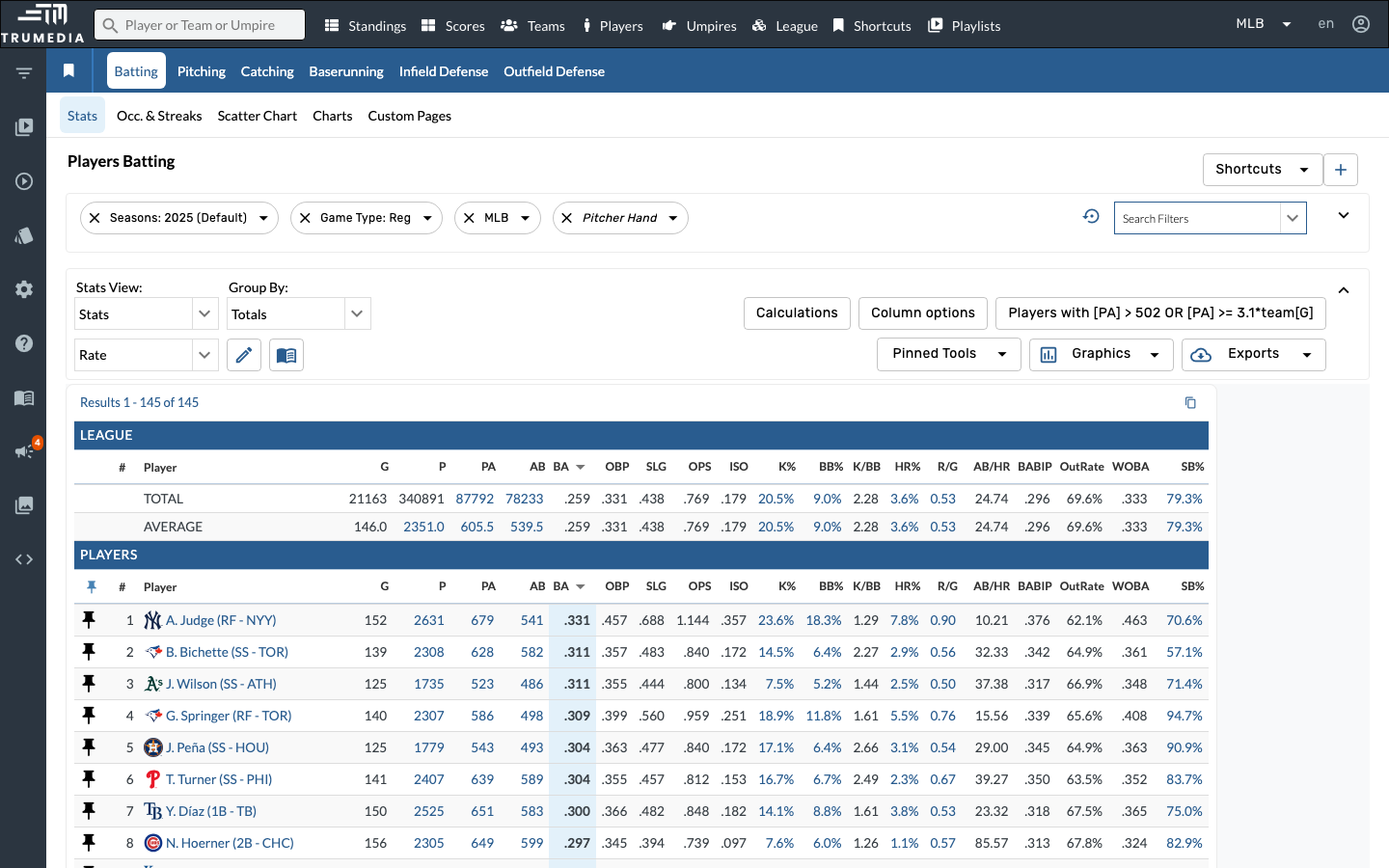
Step 4: Select Lefty to filter to at-bats vs. left-handed pitchers
Click the Pitcher Hand dropdown arrow in the filter bar and select Lefty. The leaderboard updates to show batting stats exclusively against left-handed pitching.
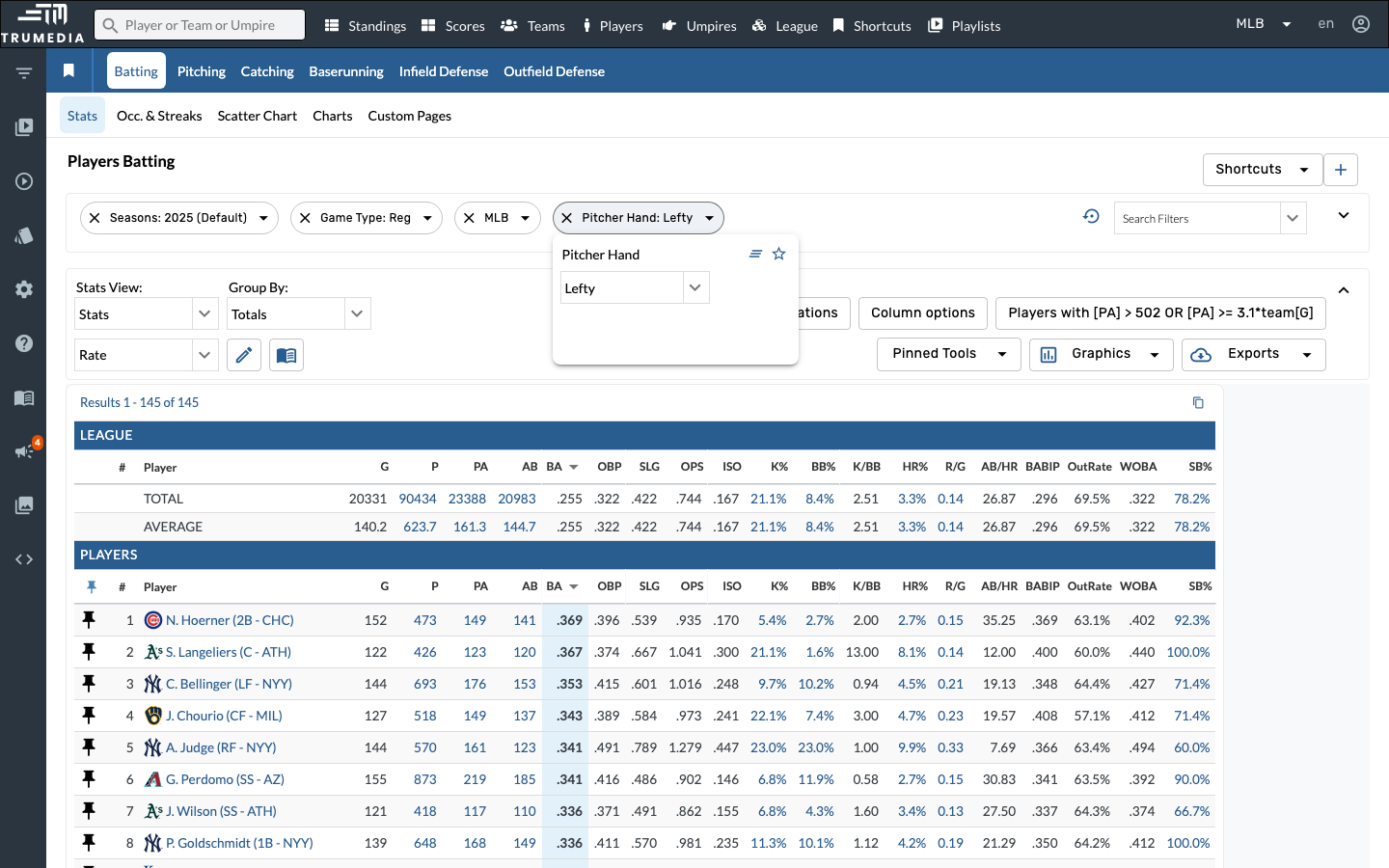
Key Takeaway
By adding filters to the leaderboard, you can quickly compare players across any situation — pitcher hand, count, game type, and more. This is a powerful way to identify matchup advantages for lineup construction and game planning.