Compare a Player to a League Average Baseline
Use TruMedia's Comps page to compare a player's stats side-by-side with other players or league averages. Conditional formatting automatically highlights where a player is above or below the comparison set.
Step 1: Navigate to a player's stats page
Go to a player's batting stats page. In this example, we'll look at Aaron Judge.
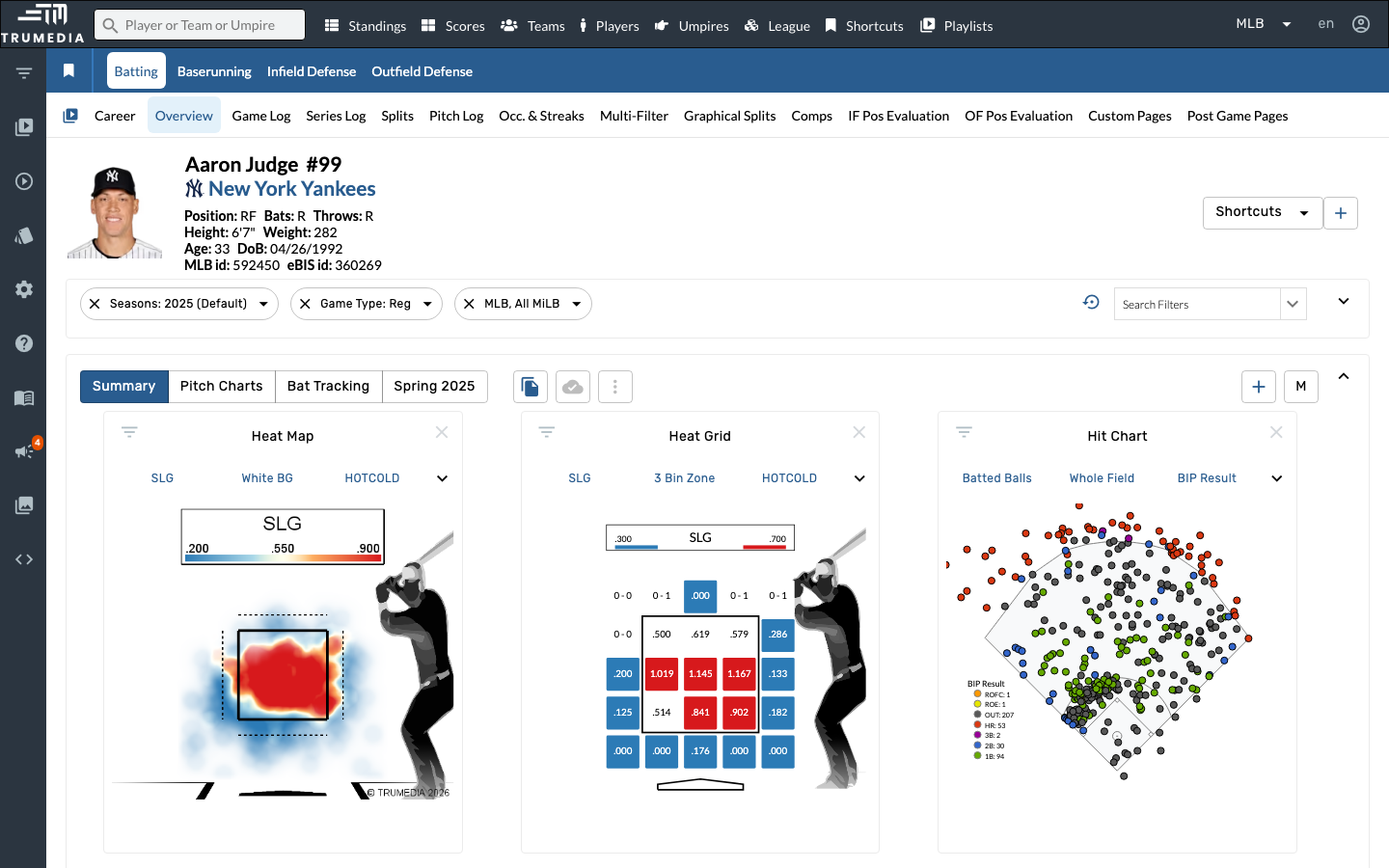
Step 2: Open the Comps tab
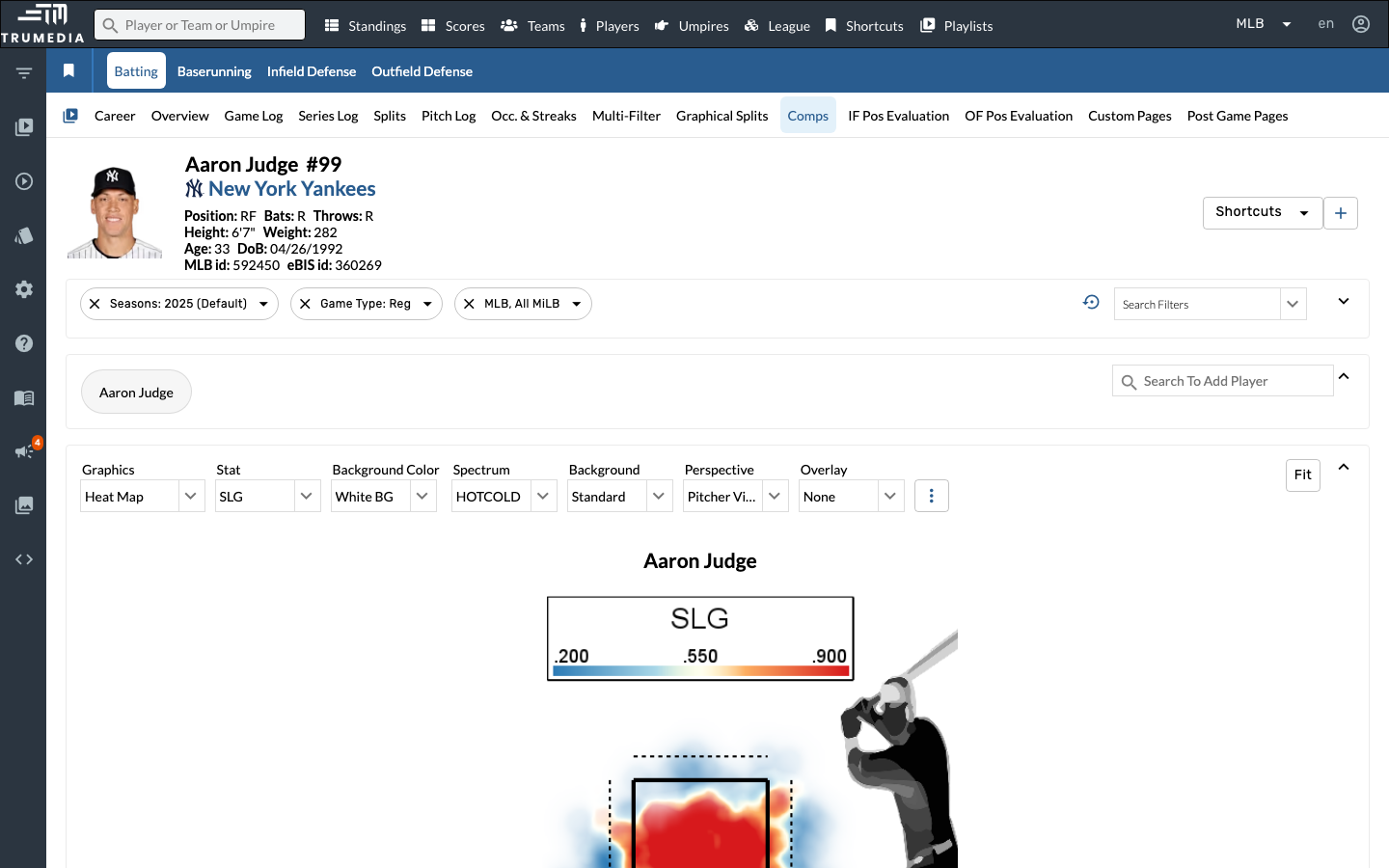
Click the Comps tab in the sub-navigation. This opens the player comparison view, where you can see the current player's stats alongside comparison players. Stats are automatically color-coded — green for above-average, red for below-average.
Key Takeaway
The Comps page makes it easy to benchmark a player against peers or league averages. Color-coded stats instantly show where a player excels or falls short, which is valuable for scouting reports, player development conversations, and front office evaluations.