Notas en páginas personalizadas
Create a new Google Sheet
- Add 4 columns: [PlayerID], [PlayerName], [TeamName], [Notes].
https://www.loom.com/share/4c801ebf2cf4461cad74eea2c54010b2
Share with TruMedia integrations email
-
Open the Share Google Sheets menu.
-
Copy and paste the email address below into the Add people and groups box:
trumedia@trumedia-integrations.iam.gserviceaccount.com
- Tap Send and select Share Anyway when prompted.
https://www.loom.com/share/b9c5aee6333240bfa5f43226c50ef306
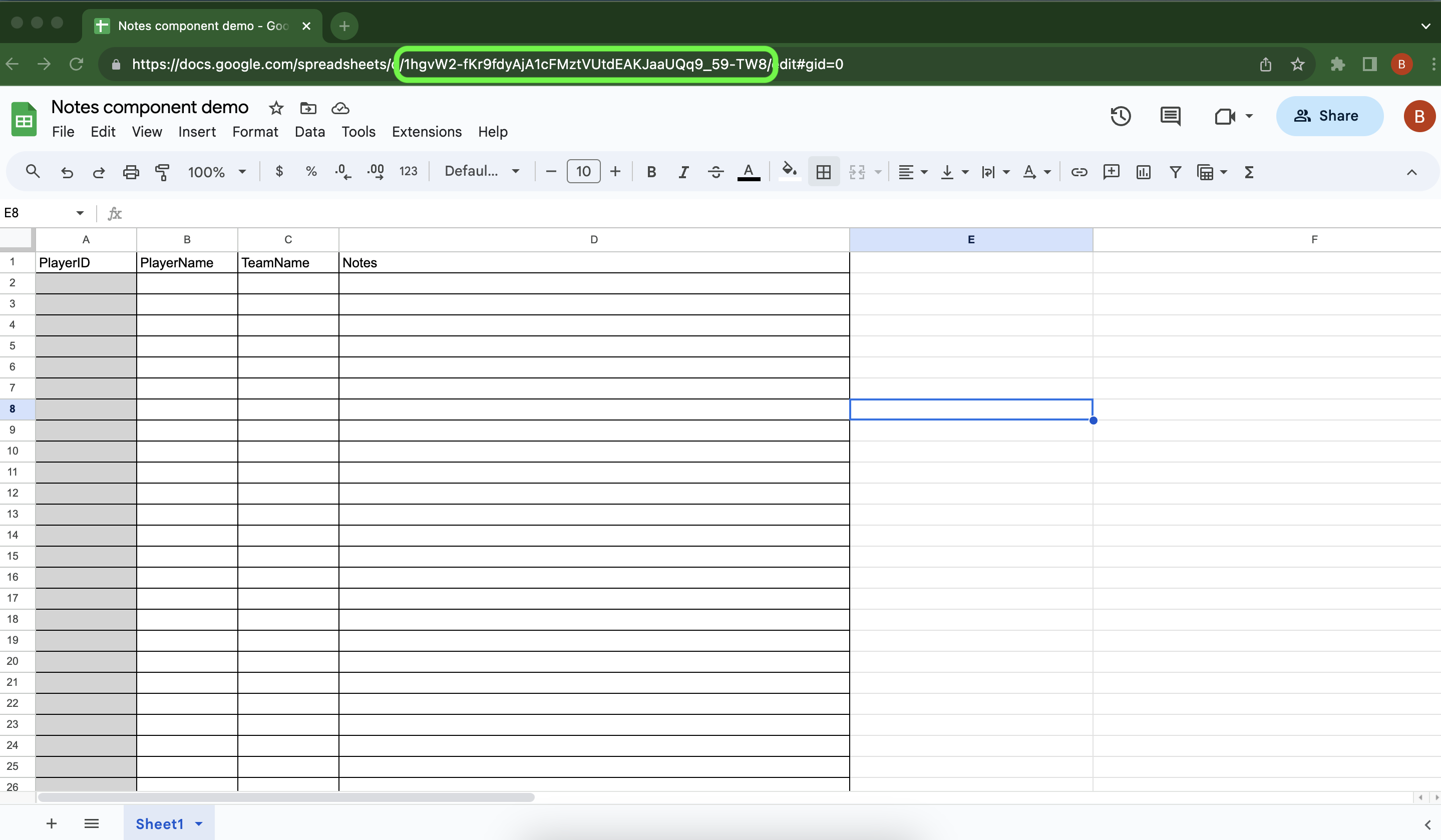
Copy SpreadsheetID
- Copy the SpreadsheetID from the Google Sheets URL.
Custom Page Builder
Create Notes component
-
Open the Custom Page Builder.
-
Add a Notes component where you want these notes.
https://www.loom.com/share/6da6303ec2584ab0b67623b8cc481adf
Connect Google Sheets to the notes component
-
Select Component Settings > Google Sheets.
-
Paste the SpreadsheetID in the Spreadsheet ID box.
-
Open PlayerID Col menu and choose [playerID].
-
Open Note Col menu and choose [Notes].
https://www.loom.com/share/8f559f278ef34bfdb29ecb9863331085
The Note Col menu tells the computer where to put the notes in this column on the Custom Page.
Add a title for the component
-
Hover over the component.
-
Select Component Settings.
-
Open the Title box and type a title for your graphic.
https://www.loom.com/share/e3aa8e39bbf44ab195d14a48e2846420
Export the team roster
-
Search a team.
-
Select the roster page.
-
Set the Filters and Qualifications to determine which players to include on the roster export.
-
Export the roster to a .csv file.
https://www.loom.com/share/d79958fd309f4c60aabac2cc585f7ddc
Turn the Display Columns Only setting off.
If it is on, the playerID column [will not] download.
Add the roster to Google Sheets
-
Open the .csv file and copy the [playerID] and [playerFullName] columns in the exported .csv file.
-
Paste them in the Google Sheet.
-
Add a [TeamName] column in the Google Sheet to organize the players by team.
-
Write notes for each individual player in their row of the [Notes] column.
https://www.loom.com/share/443d03eaacf34e0a9c97a5a20dbea6f5?sid=a814b36e-3994-4a56-bb02-0f742ac75614
Confirm the notes added on a Custom Page
-
Search the team on TruMedia
-
Select the roster page.
-
Open the Custom Page you created.
-
Search a player you wrote notes for and confirm they are on the Custom Page.
https://www.loom.com/share/82e8767b0d4f4637bfc73eb1312783c5
Pro Tips
Adjust the alignment of the note
-
Hover over the component
-
Select Component Settings.
-
Open the Vertical Alignment menu and choose an option.
-
Open the Horizontal Alignment menu and choose an option.
Change font size of the note
-
Hover over the component
-
Select Component Settings > Google Sheets.
-
Open the Note Font Size menu and choose an option.
Email the Support Team
Newsletter + Feature Request